The right mode for the page
Choose Document, Auto, Receipt, ID, Photo, Form, B&W Text or Whiteboard before capture. Each option keeps the setup understandable instead of hiding everything behind one generic scanner.
A focused mobile scanner
Turn paper documents into polished PDF files with eight purpose-built scanning modes, practical page settings and Apple’s familiar capture interface.

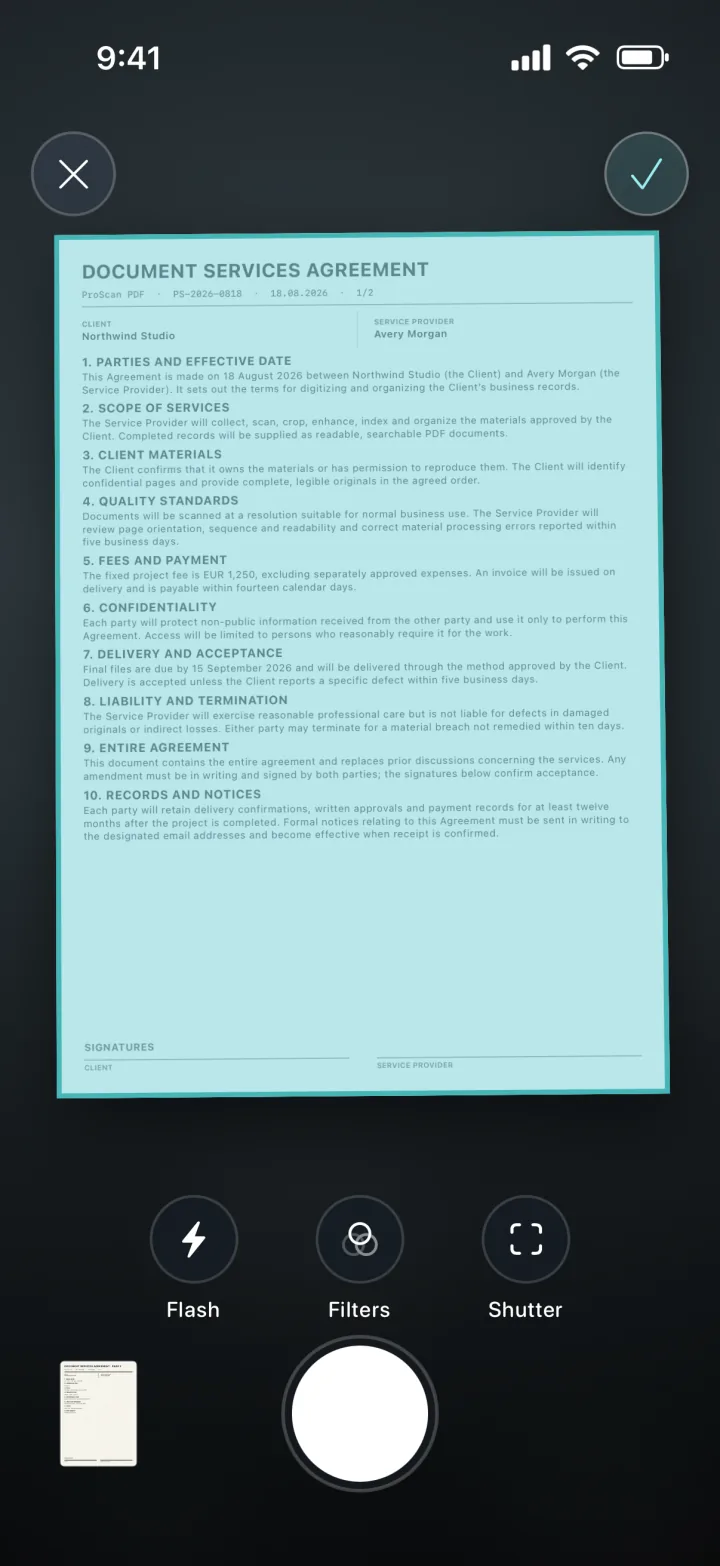
Choose Document, Auto, Receipt, ID, Photo, Form, B&W Text or Whiteboard before capture. Each option keeps the setup understandable instead of hiding everything behind one generic scanner.
Select A4, Letter, Legal or another supported page size, choose portrait or landscape, and decide whether page numbers or timestamps should appear in the finished document.
Core scanning and PDF creation happen on your iPhone or iPad. Your document is not uploaded to a ProScan PDF server for processing.
A clear three-step workflow
ProScan PDF keeps the action, confirmation and saved file inside one focused workflow.
Start from Home and select the mode that best describes the page. Auto is useful for general capture, while Receipt, ID, Form, B&W Text and Whiteboard make the intended result clear before you begin.
Use Apple’s document scanning interface to frame the page, control flash and filters, and switch between automatic and manual shutter behavior. Review each capture and add more pages when the document continues.
Tap Finish after the last page. ProScan PDF creates the document in My Files, keeps a local copy ready for fast access and can create a private iCloud backup when iCloud is available.
Built for practical documents
A receipt does not need the same treatment as a whiteboard or an identity document. Dedicated modes make the choice visible, while page size, orientation, numbering and timestamps remain available in one compact Scan Setup area.
Capture a single page or continue building a longer document in the same scan. The resulting pages stay together in one PDF, ready to view, rename, organize, sign, lock, compress or share from the library.
A successful save is confirmed on screen, and the finished PDF appears in My Files. Local-first storage avoids waiting for an iCloud download every time you reopen a recent document, while optional backup helps when moving to another Apple device.
Questions, answered
Practical details about how this feature works in ProScan PDF.
Yes. Continue capturing pages before you tap Finish, and ProScan PDF saves them together as one multi-page PDF.
Document, Auto, Receipt, ID, Photo, Form, B&W Text and Whiteboard are available from the Home screen.
Core capture and PDF creation work on the device. Sharing and iCloud backup require a connection when you choose to use them.
After you tap Finish and the save succeeds, the PDF appears in My Files with a local copy available for fast access.
Continue the workflow
Your next document is one tap away
No ads. No watermarks.