A clear image for every page
ProScan PDF renders the complete PDF in page order and creates one high-quality JPG for each page. Multi-page documents become an organized set of numbered image files.
Every PDF page becomes an image
Turn each page of a PDF into a separate high-quality JPG, then choose whether to save the images to Photos or share them with another app.

ProScan PDF renders the complete PDF in page order and creates one high-quality JPG for each page. Multi-page documents become an organized set of numbered image files.
When the images are ready, save them directly to Photos or open the iOS share sheet to send them, save them to Files or continue in another compatible app.
The PDF is rendered locally on your iPhone or iPad. ProScan PDF does not upload the document to its own conversion server.
A clear three-step workflow
ProScan PDF keeps the action, confirmation and saved file inside one focused workflow.
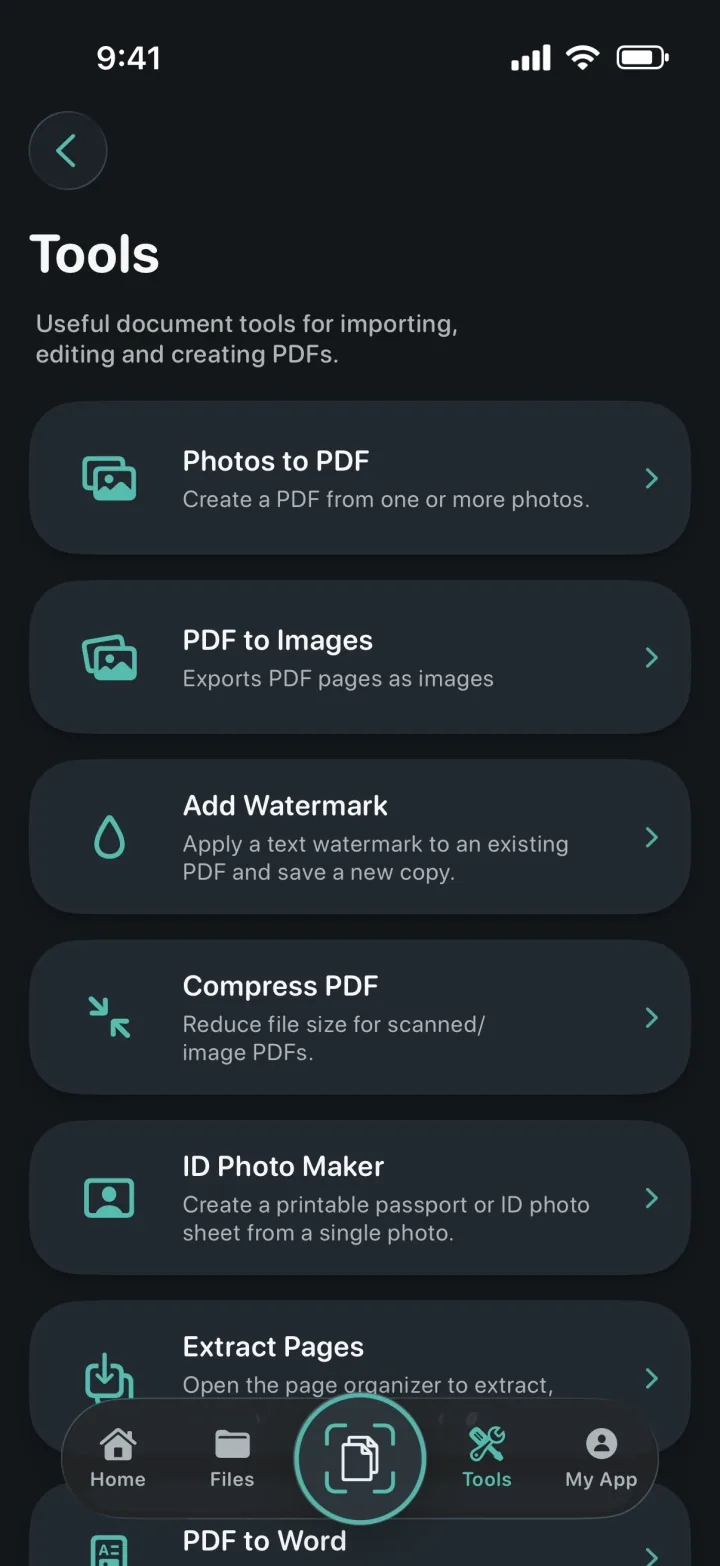
Open Tools, tap PDF to Images and select a document from My Files. The app confirms the selected source before beginning the export.
ProScan PDF renders each readable page locally and creates sequentially numbered JPG files so their original order remains clear.
Choose Save to Photos for direct photo-library access, or choose Share or Save to Files to use the standard iOS share sheet. A completion card confirms a successful save to Photos.
Built for practical documents
Image export is practical for uploading individual pages to a form, placing a PDF page in a presentation, sending one page through a messaging app or keeping visual copies in Photos.
Every image filename includes its page number. A five-page PDF produces five JPG files in the same sequence as the source rather than one long or combined image.
The page images are prepared in temporary app storage for the save or share action. After the workflow finishes, ProScan PDF removes the temporary export instead of leaving hidden duplicate files behind.
Questions, answered
Practical details about how this feature works in ProScan PDF.
The tool creates a separate high-quality JPG file for every PDF page.
Yes. Every readable page is exported in order with a numbered filename.
Yes. Choose Share or Save to Files to open the standard iOS share sheet and select an available destination.
No. Page rendering and JPG creation happen locally on your iPhone or iPad.
Continue the workflow
Your next document is one tap away
No ads. No watermarks.